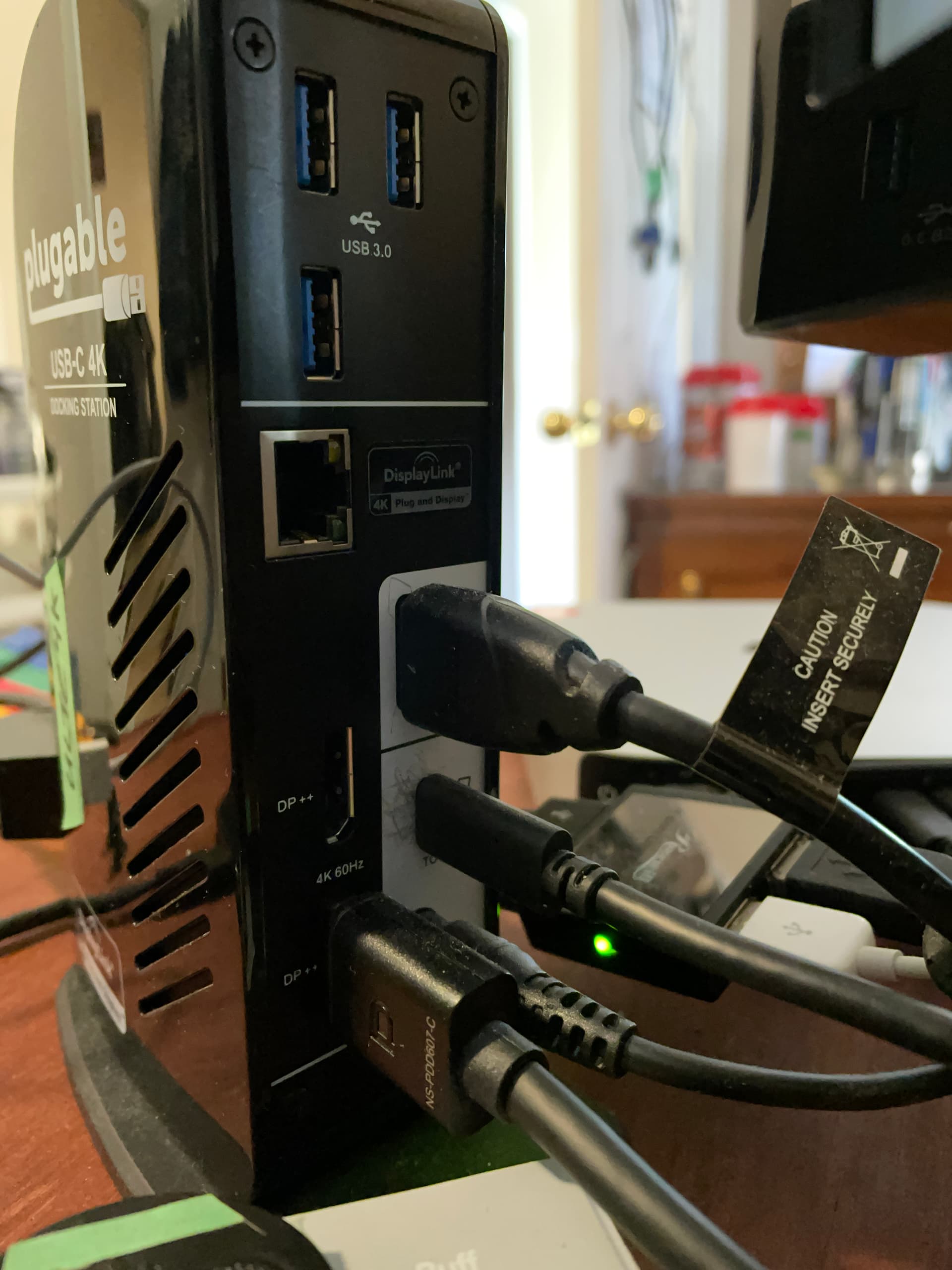
Hi there. I’ve kept back because of reported issues with MacOS Tahoe and screen flickering. Does anybody have any experience with 4 displays with Tahoe?
Cheers
Hi there. I’ve kept back because of reported issues with MacOS Tahoe and screen flickering. Does anybody have any experience with 4 displays with Tahoe?
Cheers
Hello,
Thank you for contacting Plugable support! I’d be more than happy to assist you.
To my knowledge, we have not encountered any specific known regressions or new issues regarding display flickering with Tahoe and the UD-ULTC4K dock. I can confirm that we have quite a few customers now with the UD-ULTC4K who are already running Tahoe and have three external displays + the Mac laptop display being used.
Specifically for the UD-ULTC4K, we would of course recommend to ensure to update the DisplayLink USB graphics drivers as well when you update macOS.
If/when you do update to Tahoe and if you experience any issues please let us know, always happy to assist.
Thanks again for contacting Plugable support and best wishes!
Joshua Henry
Senior Engineer | Product Owner
Plugable Technologies

Just so that I know, if there are some issues with this migration, what efforts are put into place? Moving back to Sequoia?
Hi,
Thanks for your response. My name is Sam and I’ll be jumping in to assist while Josh is out of office.
As Josh mentioned we haven’t encountered any specific regressions regarding display flickering in macOS 26 Tahoe, so if you do come across any issues it would more than likely be setup-specific rather than an inherent limitation with using the UD-ULTC4K in macOS 26.
In the case you do run into an issue, please reach out to us either here on our community support forum, or by emailing us at support@plugable.com and we’d be happy to assist with troubleshooting to help find a solution.
Thank you,
Sam
Plugable Technologies
I will be migrating today.
Hi Rich,
Sounds good. Please let us know how this goes, or if any assistance is needed.
I hope you have a great day!
Sam
Plugable Technologies
Installed. Everything looks good. 4 displays on Mac Mini M4.
Glad to hear it!
Feel free out reach out again if there’s anything else we can help with in the future!
Sam
Plugable Technologies
Well I spoke too soon.
Hi again,
Thanks for reaching back out, and I’m sorry to hear of this issue.
The behaviour shown in the video you provided is definitely not expected, so I’d like to dig into this to help identify what may be going wrong and what options there are to address this.
To start, can you please provide the following details:
Does this issue affect all of the monitors connected to the dock? If not, is it only one or two monitors?
Can you please also specify which ports on the back of the dock the affected monitors are connected to? The ports should be labelled DISPLAY 1, 2, and 3 for easy identification.
Sometimes a corrupted image like that can occur due to loose cable connections - can you please check if all of the cables between the Mac, dock, and display(s) are firmly seated in their connectors?
If you haven’t already done this, I also recommend performing a power-cycle of the dock to reset its internal hub chipset. We’ve seen that this can often restore the dock back to a working state when one or more of its functions are not quite working. To do this, please follow these steps:
Disconnect all USB peripherals connected to the dock
Disconnect docking station from host computer, then disconnect the dock’s power adapter from power
Leave unplugged for 1 minute for power to dissipate
Connect docking station initially into power only
Connect docking station to host machine, then connect USB peripherals and test for functionality
Please let me know how this goes, and feel free to ask if you have any questions.
My apologies for the trouble here.
Sam
Plugable Technologies
Jut the first monitor, and it comes and goes. There’s like these red dots flickering like a halo around windows and Chrome form elements.
The port is the left side top, which is DP++. No other issues on any other monitor. Checked the connections and they are solid. I’ve had the power down on this unit for several minutes last night but monitors plugged in. I can check these tonight.
Hi,
Thanks for confirming those details, and for trying the reset of the dock when you have a chance.
In case the reset doesn’t help, can you please try swapping your monitors and their respective video cables between the two DP++ ports ports? When you do this, we’ll want to check if the issue stays with the same monitor/cable, or if it switches to the monitor that was most recently connected to the top DP++ port.
This test will help to confirm if the problem is on the dock side, or with the specific display/cable.
Please let me know if you have any questions in the meantime as well. Thanks for your patience as we work through this.
Sam
Plugable Technologies
Well reset the hub. Now the questionable monitor cannot be seen. Restarted, flushed the hub twice. It simply won’t turn on. Reseated it twice. So what do I do now?
UPDATE
AI research showed me this:
The real problem (most likely)
1. DisplayLink + DVI EDID failure after Tahoe update

Tahoe tightened display enumeration rules. DVI displays (especially older ones like the Samsung 2443) are now far more likely to be dropped if EDID negotiation is even slightly nonstandard.

What happens:

Monitor powers on

Cable tests fine

DisplayLink sees something

macOS refuses to create a display object

Result: display never appears, no error

This is extremely common post-26.x with:

DVI

VGA

Passive DP++ adapters

Why it worked before

Because:

Older macOS tolerated broken EDID

DisplayLink driver compensated

Tahoe no longer does

Nothing “broke” physically.

2. DP++ → DVI is now the weak link (confirmed pattern)

DP++ ports are electrically HDMI/DVI-compatible, but:

DisplayLink virtual GPUs are stricter

Tahoe’s compositor rejects bad timing blocks

DVI displays don’t advertise modern color spaces or sync modes

This exact symptom:

“Power on, cables good, display never shows up”

= EDID rejection, not driver crash.
Got a brand new Dell monitor with proper DP++ cables and increased resolution in fact, and it works right out of the box with no messing with the dock.
So this is a Tahoe issue.
Hi again,
Thanks for the updates, and sorry for the delay in responding.
I hadn’t previously heard of issues with DVI displays in macOS Tahoe, and I can say that it’s not an issue that I’ve seen previously reported - I appreciate you sharing that snippet from your AI research and will definitely look into this further on our side.
Thanks for sharing the update about the other monitor working as well. This definitely adds credibility to the idea that it could be an issue specifically with DVI displays.
Just to confirm, is the display’s DVI input still working if you test it with a different computer/host device? I ask because the behaviour of the strange artifacting on screen followed by the display no longer working could be indicative of a failing monitor or cable rather than an incompatibility issue with macOS Tahoe. Testing if the monitor works with a different may help to confirm which of these is the case.
Please let me know of you have any other questions as well. My apologies again for the frustration.
Sam
Plugable Technologies
I haven’t tested it. I don’t know if I have anything to test it with. I can test later today if I have the equipment.
Hi again,
I appreciate your help with looking into this if you’re able to. Please do let us know how this works out if you’re able to try it, and feel free to ask if there’s anything else we can assist with.
Sincerely,
Sam
Plugable Technologies
Well the only hardware I have is a DVI port, and not a DP port that could accomodate my full cable setup that was questionable. I have a DP→DVI adapter→ DVI cable to the Samsung monitor. So this won’t really tell the full story.
Thanks for checking for that. You’re right that it wouldn’t be a fully complete comparison, but testing with the DVI video source to the monitor (without the DP to DVI adapter) may at least show if the monitor can provide basic functionality in a simpler setup. This would be suitable to confirm if the monitor or DVI cable could have been the cause of the problem you were seeing with this monitor.
Please let me know how this goes if you have a chance to try it - it would be helpful to know this information to confirm if the issue may have had something to do with the docking station or not.
Feel free to ask if you have any questions as well. Thank you for your patience and cooperation.
Sam
Plugable Technologies
OK just rebooted with DVI to the monitor. Works fine.